
Overview
Palcode.ai uses Procore’s User-Level OAuth. This means:
No Service Account is created
No Procore project assignment steps are required
Sync runs on behalf of the Procore user who authorizes the connection
Step 1: Install the Palcode.ai App in Procore
This step can only be completed by a Procore Company Admin.
Log in to Procore.
Open Company Tools > Admin > App Management.
Search for “Palcode.ai” in the Procore App Marketplace.
Click “Install.”
Review the permission scopes requested by the app.
Click “Authorize.”
Once authorized, your company is enabled to connect to Palcode.ai through user-level OAuth.
Step 2: Connect Procore Inside Palcode.ai
Any Palcode.ai user with access to the Integrations page can perform this step.
Log in to https://project.palcode.ai
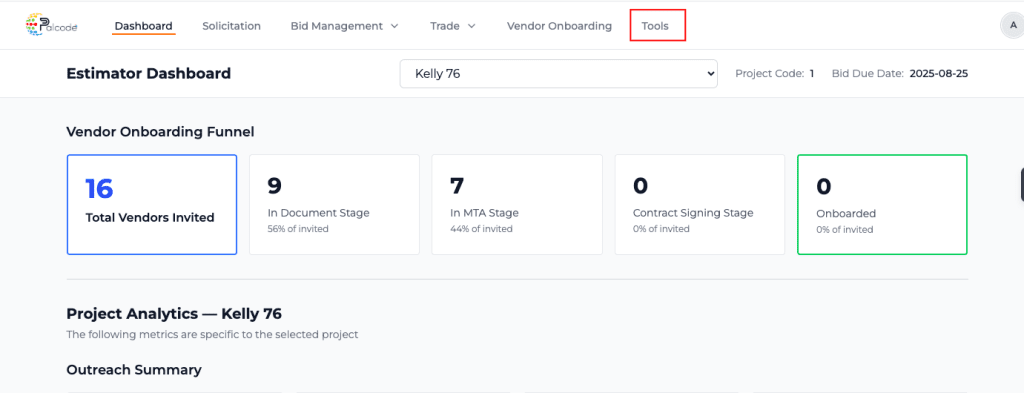
Navigate to Tools in the header menu
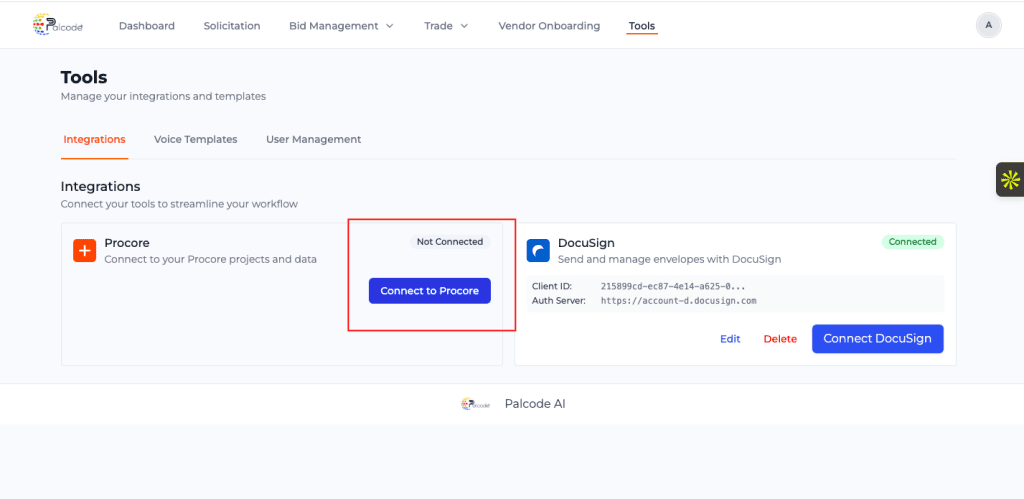
Find the Procore integration card and click “Connect to Procore.”
You will be redirected to the Procore login page.
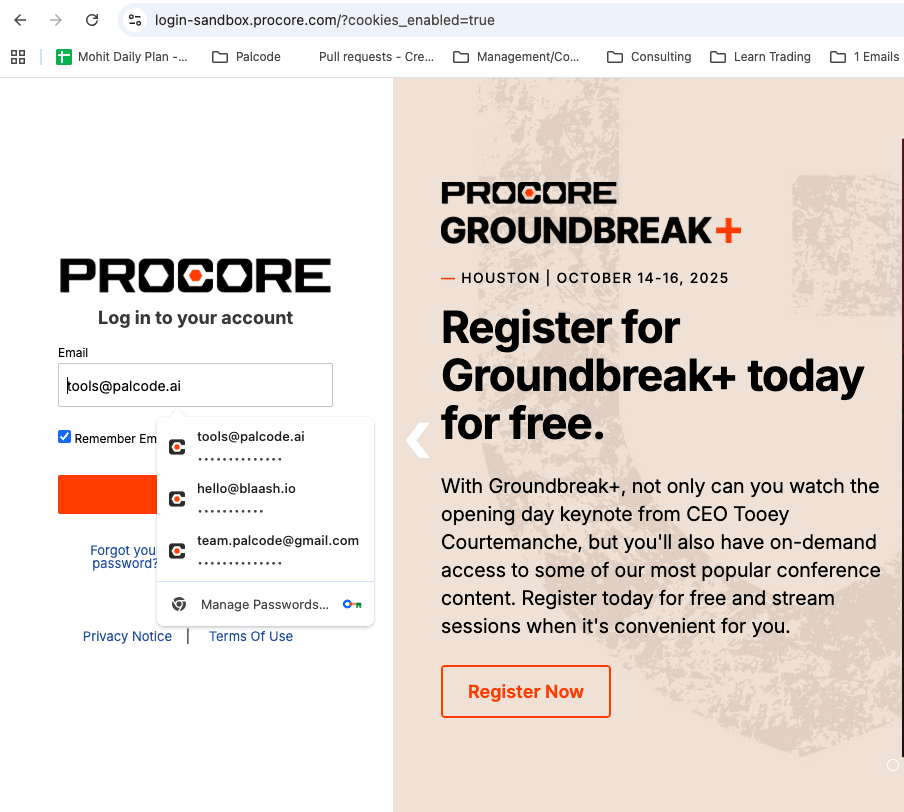
Enter your Procore credentials to authenticate.
Review the permissions and click “Allow.”
You will be redirected back to Palcode.ai.
The Procore connection status will update to “Connected.”
Palcode.ai will now store your OAuth token securely and begin syncing data.
What Data Gets Synced
After a successful connection, Palcode.ai begins syncing:
Projects
Bid Packages
Bids
Vendors
Where to View Procore Data in Palcode.ai
After connecting Procore, you can access synced information through:
Dashboard
Bid Management
Vendor Onboarding
Tools > Integrations (connection management)
These areas will reflect the data pulled from Procore.